Uber and Bolt on your Tesla or car display
With RideGo, see your Uber or Bolt offer and calculation card on a larger screen in your car browser. Pair your phone with a QR code or pairing code and keep ride decisions on your phone.
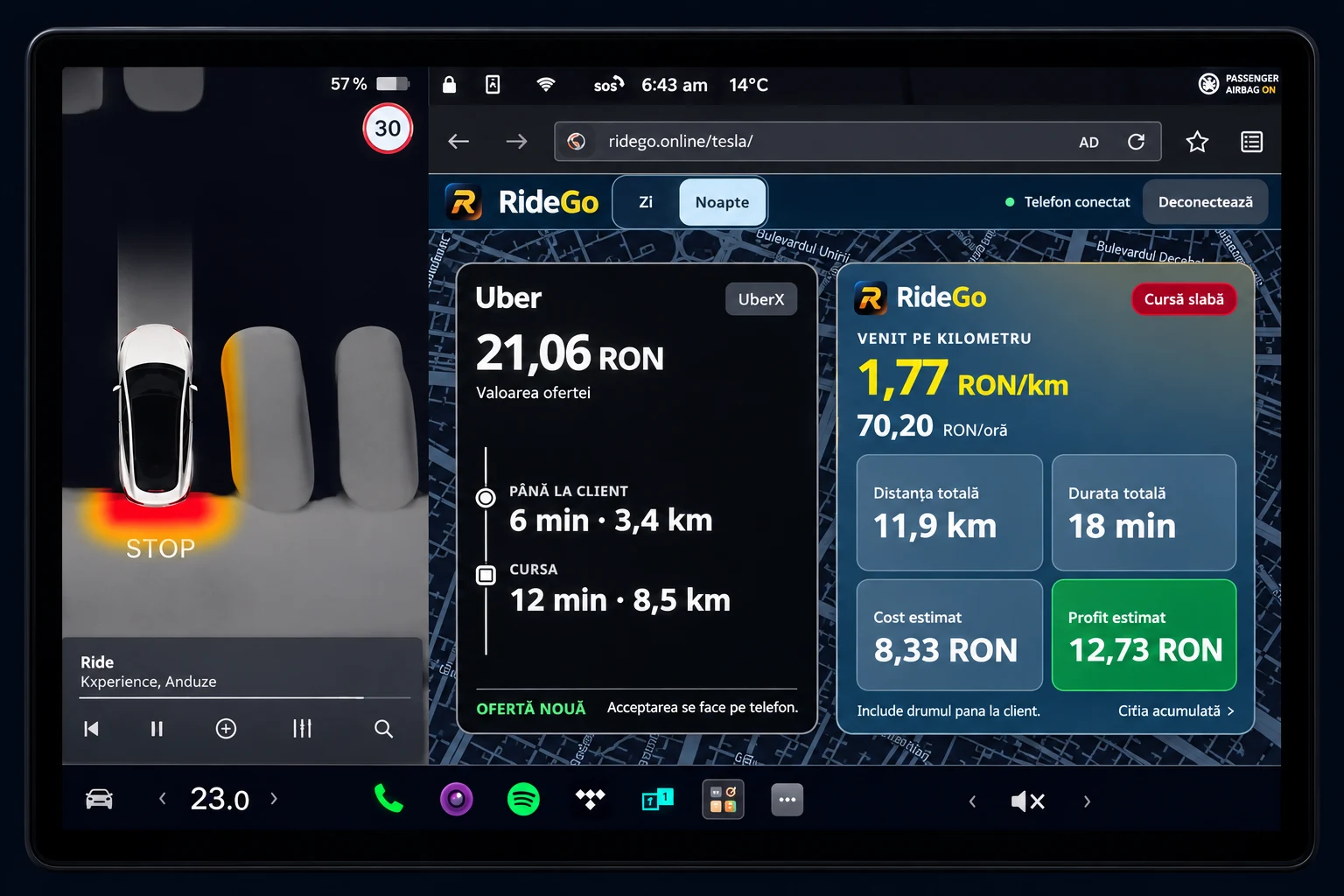
The offer and its calculations, together
Uber / Bolt offer
Fare, pickup and trip time, and distances appear when they are available in the offer read by RideGo. The presentation depends on your phone and the available display mode.
RideGo calculation card
Compare earnings per kilometre or mile, earnings per hour, total time and distance, vehicle cost and estimated profit, based on the offer data and your settings.
Tesla and other cars with a browser
You need RideGo on your phone, internet on both devices and a car browser that can open the page and maintain the connection. Browser availability depends on the model, software and manufacturer restrictions.
Android
Android: enable offer reading and the permissions requested by RideGo. Offer display or mirroring depends on your installed version and available mode.
RideGo AndroidiOS · iPhone
iPhone: start RideGo offer reading. The car display shows offer data and the calculation card.
RideGo iPhoneConnect in four steps
- While parked, open ridego.online/tesla/ in your car browser. Connect both your phone and car to the internet.
- On your phone, open RideGo → Tesla Screen. Scan the QR code or enter the code shown in the car.
- Confirm your phone on the car display, then start offer reading in RideGo and open Uber or Bolt on your phone.
- When a compatible offer arrives, its information and calculations appear on the paired display. Accept or decline the ride on your phone.
Frequently asked questions
Does it only work with Tesla?
No. It can also work with other car displays that have internet and a compatible browser. Internet access alone does not guarantee compatibility with every model.
Do I install RideGo in the car?
Open the page in your car browser. The RideGo app runs on your phone; no native RideGo app installation in the car is needed.
What should I check if an offer does not appear?
Check internet on both devices, confirmed pairing and active offer reading on your phone. Keep the page open and check RideGo permissions. Generate a new code if pairing has expired.
How to see Uber and Bolt offers and RideGo calculations on your car display
RideGo brings offer information and profitability calculations to your car browser. Here is how to pair your phone, what appears on screen and what to check before your first use.
Read the articleRideGo is independent of Tesla, Uber and Bolt. It does not automatically accept or decline rides. Calculations are estimates; set up the connection while parked and follow your car display restrictions.